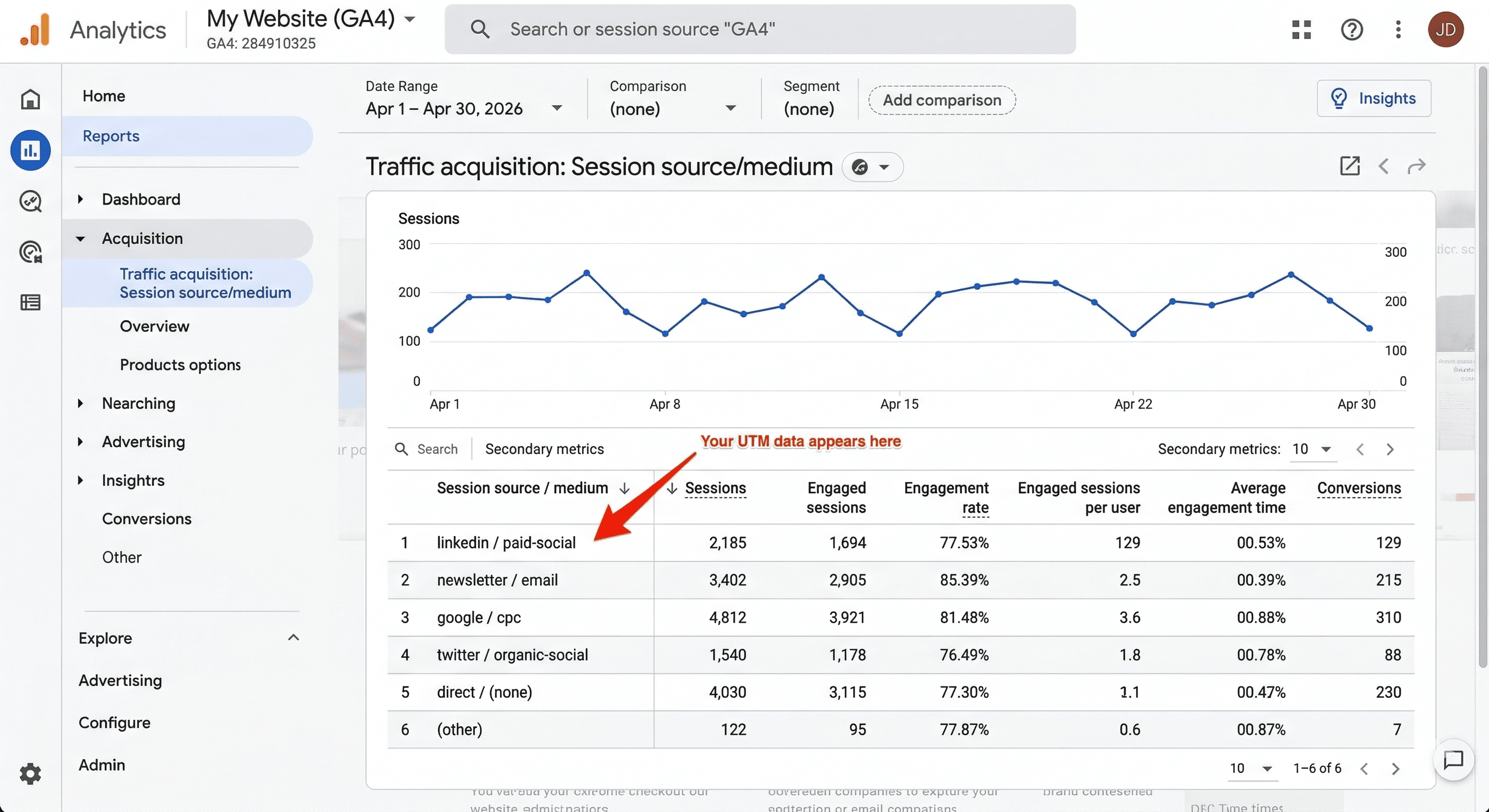
Your Google Analytics shows 40% of traffic coming from "direct". That's not direct traffic — that's untagged links you forgot to track. UTM parameters fix this in about 30 seconds.
What are UTM parameters?
UTM parameters are short tags you add to the end of any URL. They tell Google Analytics exactly where a click came from — which platform, which campaign, which piece of content. Without them, GA4 guesses. With them, you know.
Why UTM tracking matters
Every untagged link is a blind spot. You spend money on a LinkedIn ad, send a newsletter, post on Twitter — and GA4 lumps half of it into "direct" because the source got lost somewhere between the click and your site.
UTMs fix this permanently. One tagged link tells you: this visitor came from LinkedIn, clicked a paid ad, was part of your Q2 launch campaign, and clicked the blue CTA button specifically.
How to build a UTM link — step by step
Step 1: Start with your destination URL.
https://publictools.live
Step 2: Add your source — where the link lives.
utm_source=linkedin
Step 3: Add your medium — how it's distributed.
utm_medium=paid-social
Step 4: Add your campaign name.
utm_campaign=q2-launch
Step 5: Add content if you're A/B testing creatives (optional).
utm_content=blue-cta
Your final link:
https://publictools.live?utm_source=linkedin&utm_medium=paid-social&utm_campaign=q2-launch&utm_content=blue-cta
Free Tool
UTM Link Builder
Build UTM tracking links for your campaigns.
Common mistakes to avoid
- Mixing capitalisation —
LinkedInandlinkedinare two different sources in GA4. Use lowercase for everything, always. - Tagging internal links — never put UTMs on links between your own pages. It resets the session and kills your attribution.
- Using spaces — spaces become
%20in URLs and break your reports. Use hyphens instead. - Skipping utm_medium — source without medium is incomplete. GA4 needs both to categorise traffic correctly.